
You can use a 15-second Thriller dance video to send digital Halloween party invitations, prank your coworkers with their pet's face, or post a dancing cat on social media.
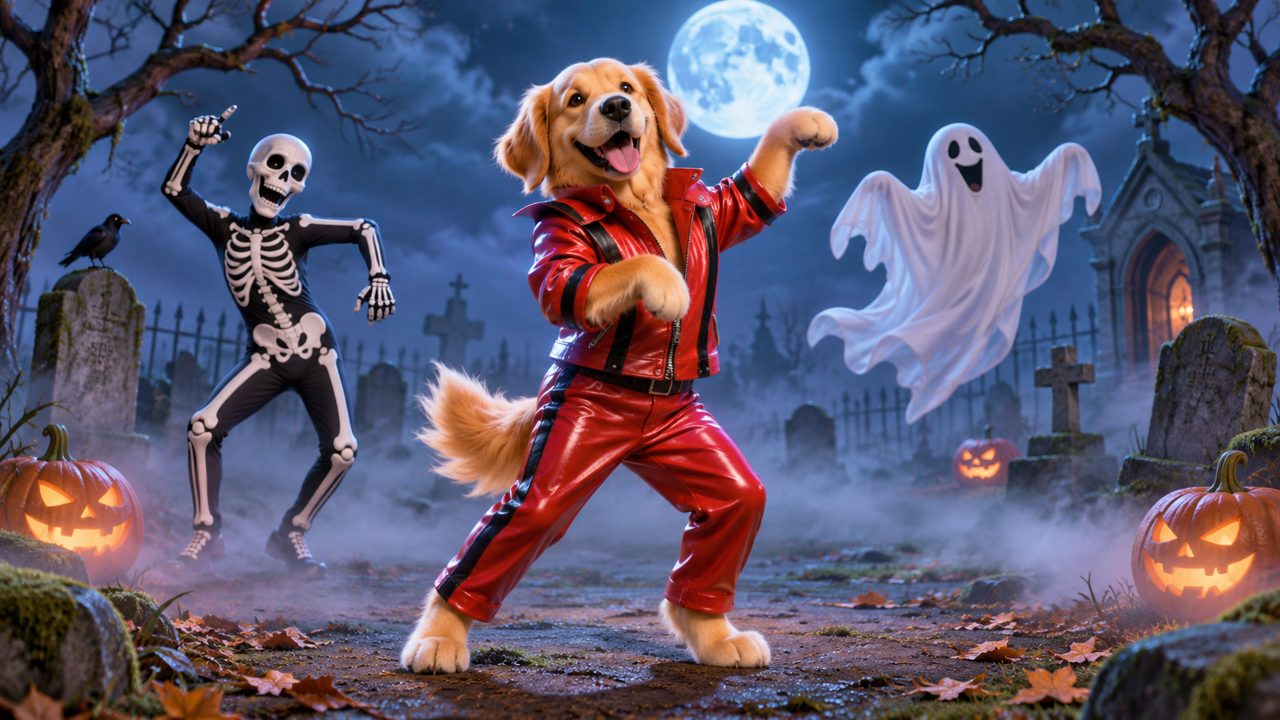
When planning for Halloween, a short video of a familiar face doing a zombie dance gives people a quick laugh. You provide one photo, and the tool outputs a 15-second video of that subject performing the Thriller routine. You can use pictures of yourself, your friends, or your animals. Here are specific ways to put those 15 seconds to work.
How can you use a pet Thriller dance for party invitations?
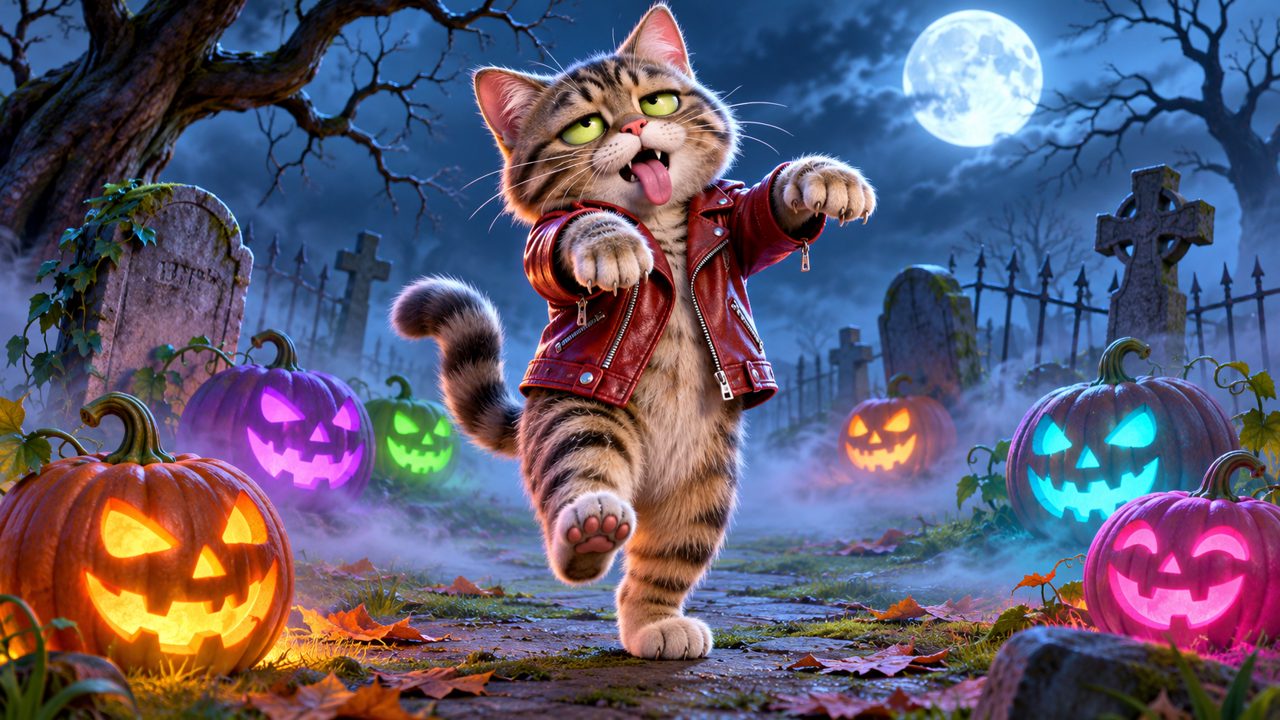
Instead of a static image or a standard text message, you can send a video of your cat or dog dancing to invite people to your Halloween party. Find a clear, front-facing photo of your pet. Go to the AI Thriller Dance Generator and upload the image. Once you have the 15-second video, you can drop it into a text message or an email to your guest list.
Because the video is short, the file size remains manageable for standard messaging apps. You can type your party details—time, date, location, and costume requirements—in the text body right below the video. If you use a video editing app on your phone, you can also add text directly over the dancing footage before you send it. A video of a golden retriever or a tabby cat doing a synchronized zombie routine immediately sets a casual, funny tone for your event.
If you send the video via email, you can attach a calendar link so guests can RSVP immediately. You can even generate a second video using a different photo to send as a reminder a week before the party. For instance, if you used your dog for the initial invitation, you could use a photo of yourself for the reminder video. This keeps the communication engaging without requiring you to write long emails. The 15-second duration is exactly enough time to grab attention before the viewer scrolls away.
If you are hosting a pet-friendly Halloween gathering, the Pet Thriller Dance AI page explains more about using animal photos. Sending a dancing dog video tells your guests that their dogs are also welcome. You can make a separate video for each of your pets if you have enough credits, as one video costs 60 credits.
What are the best ways to prank your coworkers?
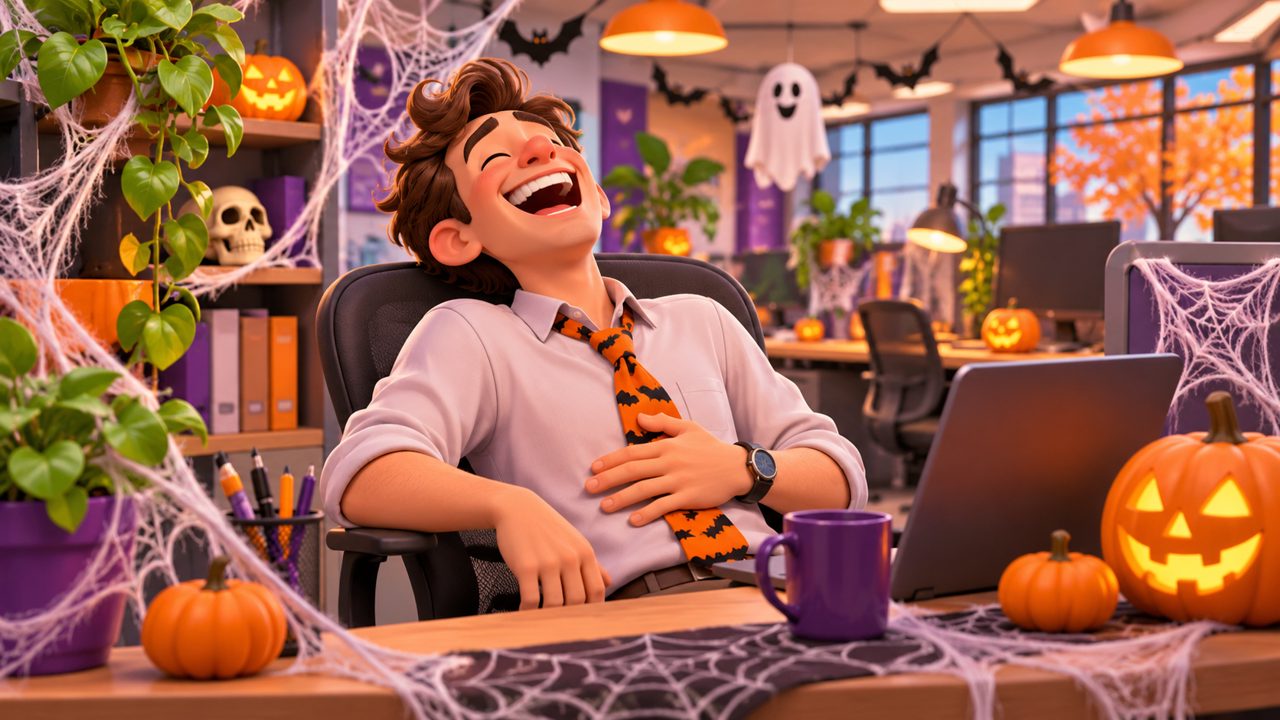
Workplaces during Halloween often feature costume contests or decorated desks. You can add to the event by secretly making a video of a coworker or their pet. You will need a good photo of the person or their animal. If your coworker has a picture of their dog on their desk, you can take a clear photo of that picture.
Sign in to the site using Google or your email. Purchase the 60 credits needed for one video. The cost is a $5.00 one-time payment processed through FloatPass. Generate the video and save it to your phone or computer.
During a video call, you can use the screen-share function to play the 15-second clip while people are waiting for the meeting to start. Alternatively, if your office uses a team messaging platform, you can post the video in the general chat channel on Halloween morning. It provides a quick, unexpected joke without disrupting the workday. Because the video only lasts 15 seconds, it does not require a long attention span.
If you work in a physical office, you can leave a tablet or an old phone on the breakroom counter playing the video on a loop. Place a small bowl of Halloween candy next to it. When people walk in to grab a piece of candy, they will see their boss or the office dog performing the Thriller dance. You can also incorporate the video into a slide presentation. If you have a team meeting on October 31st, put the video on the final slide of your report. As you conclude your updates, switch to the last slide and let the 15-second zombie dance play without any explanation. It is a harmless, concrete way to bring the holiday into a typical workday.
You can also use a photo of yourself. If your team expects you to dress up but you are working remotely, you can send the video of yourself doing the zombie dance and tell them this is your digital costume for the year.
How do you make a family Halloween video greeting?
Many families send holiday cards in December, but a Halloween video greeting is less common and often more memorable. You can use a photo of yourself, your spouse, or your children. If you have a photo from last year's Halloween where everyone is in costume, pick one person from that photo to animate.
Upload the photo and let the tool generate the dance. Once downloaded, you can email this video to grandparents, aunts, uncles, and friends. It serves as a digital greeting card. You can write a simple message like "Happy Halloween from our family" in the email.
You can also compile multiple 15-second videos if you have a larger budget. By purchasing credits for several videos, you can generate a dance for every member of your household. You can then use a basic video editing program on your computer to stitch these 15-second clips together into a longer montage. Add a simple text title at the beginning, like "The Smith Family Halloween," and let each person's dance play one after another. This creates a minute-long family showcase that requires no actual dancing or costume preparation. You just need one photo of each person. Since you sign in with Google or your email, managing your account and keeping track of your generated videos is straightforward.
To make it a tradition, you can create a new video each year using a photo of a different family member or a different family pet. Since the credits you buy are valid for 365 days, you can buy them now and use them for a different event later if you decide not to use them all for Halloween. Read the guide on turning your pet or you into a zombie dancer for exact steps on getting the best result from your family photos.
What captions work well for social media posts?
When you post your 15-second Thriller dance video on social media, the caption helps deliver the joke. The video does the visual work, but the text sets the context. Whether you post on a short-video platform, a photo-sharing app, or a text-based feed, keep the caption brief.
For a video of your dog: "He practiced this routine all month." or "The only zombie I am not running away from."
For a video of your cat: "She usually sleeps 18 hours a day, but she woke up for this." or "Proof that cats have secret lives when we leave the house."
For a video of yourself: "My Halloween costume is entirely digital this year." or "I finally learned the choreography."
Here is a table matching the photo subject to the best platform and caption style:
| Photo Subject | Best Platform | Occasion | Suggested Caption |
|---|---|---|---|
| Your Dog | Messaging Apps | Group Chats | "He is ready for the trick-or-treaters." |
| Your Cat | Video Feeds | Halloween Morning | "She refuses to break character." |
| Yourself | Professional Networks | Office Halloween | "My remote work costume." |
| A Friend | Direct Message | Prank | "Found your audition tape." |
How do you choose the right photo for the generator?

The tool needs one photo to create the 15-second video. To get a clear result, you must select the right kind of image. The subject should be facing the camera directly. Profiles or side angles do not map as well to the dancing body.
Ensure the lighting is bright and even. Shadows across the face can distort the final video. The background does not matter as much as the face, but a plain background often helps the tool distinguish the subject's head from the surroundings.
If you are taking a new photo specifically for this purpose, stand in front of a window to use natural daylight. Have the person or pet look straight at the lens. For pets, holding a treat right above your phone camera is a practical way to get them to stare directly at the lens with a focused expression. Avoid using photos where hats, sunglasses, or heavy hair obscure the face. The clearer the facial features are in the original image, the better the final zombie dance video will look. If you are scanning an old physical photograph, wipe the scanner glass first to prevent dust spots from appearing on the face. The tool relies entirely on the single image you provide, so spending two minutes to select or take a high-quality photo ensures your 60 credits are used effectively.
If you are using a photo of a pet, try to find one where the animal has its mouth closed or in a neutral expression. If you use a photo of a human, a slight smile or a neutral look works best. The tool will apply the face to the dancing figure, so the expression in the original photo carries over into the zombie dance.
Before you pay the $5.00 one-time fee, check your photo against these criteria. You can review the pricing page to understand the 60-credit system. Remember that you only need one good photo to make the video work.
How do you share the video with friends and family?
Once you generate the 15-second Thriller zombie dance video, you need to distribute it. Because the file is short, it is easy to send directly. You can attach the video file to an email. Most email providers allow attachments up to 25 megabytes, and a 15-second video easily fits within that limit. You can also send it through text messages. Standard messaging apps compress video files automatically, so your friends can watch the dance directly in their chat window without downloading a large file.
If you want to share it with a larger group, you can upload the video to a shared cloud drive. Create a folder for Halloween media and drop the video inside. Send the folder link to your family members. This method works well if you generated multiple videos using different photos of your pets or relatives. Everyone can view the entire collection of zombie dances in one place. Since you sign in with Google or email, you can easily download your generated videos to your device and move them to your preferred storage or sharing platform. The $5.00 one-time fee covers the generation of the video, and after that, you hold the file to share however you prefer. If you need help, you can reach out to contact@aithrillerdance.com. The site is available in en and zh languages.
Where else do people look for AI video tools?
When searching for ways to animate photos or create AI videos, people often explore several different platforms depending on their specific needs. Some users look at kling.ai or viggle.ai for various video generation tasks. Others check mangoanimate.com for animation software. For different types of AI media, people also look at freebeat.ai, magiclight.ai, and aireel.net. These sites offer different approaches to digital video and animation. If you specifically want to turn one photo of your pet or yourself into a 15-second Thriller zombie dance video, you can make yours here. You can also read more ideas on our blog.
Frequently asked questions
How much does one Thriller dance video cost?
One Thriller dance video costs a $5.00 one-time payment. This payment gives you 60 credits to generate the video.
How long is the generated video?
The tool creates a 15-second Thriller zombie dance video from your photo.
How do I pay for the video?
All payments for the video credits are processed securely through FloatPass.
How long are my credits valid?
The 60 credits you purchase are valid for 365 days from the date of purchase.
How do I sign in to the site?
You can sign in to the platform using your Google account or your email address.