
A clear, front-facing photo with good lighting and the full body or face visible works best to generate a 15-second AI Thriller zombie dance video of yourself or your pet.
What makes a photo ideal for AI video generation?
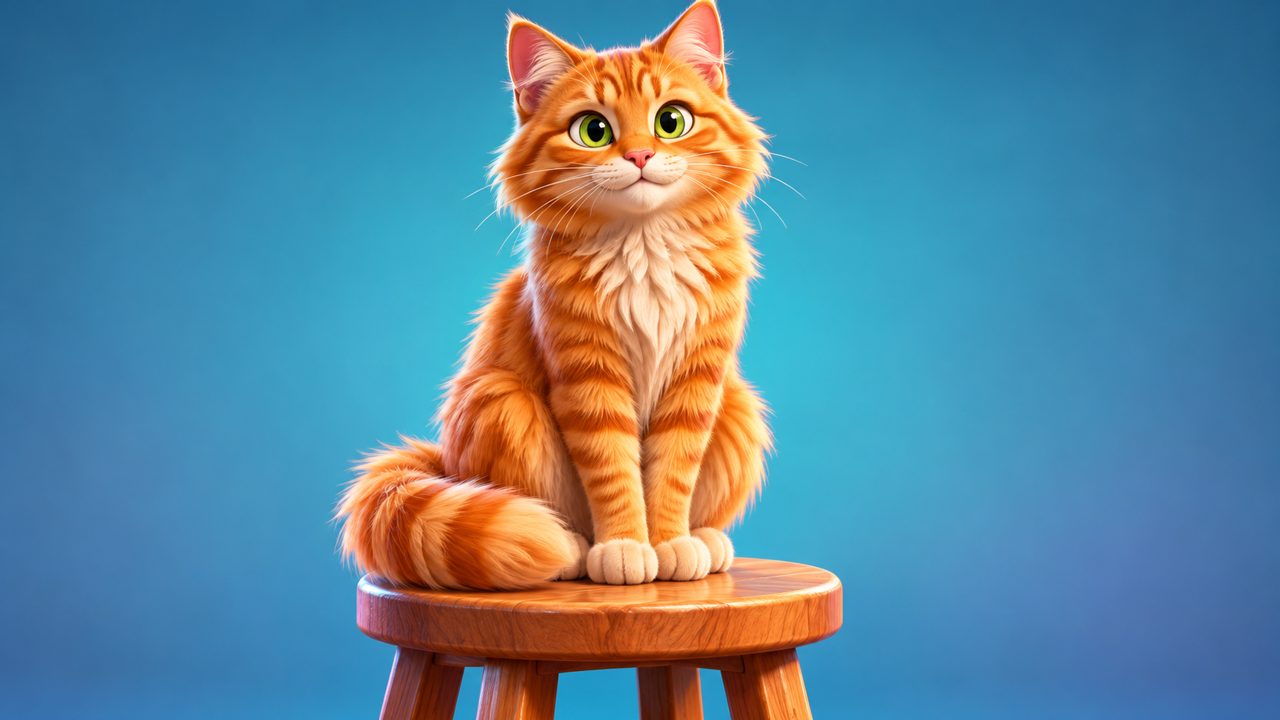
When you prepare to make an animated video from a single image, the quality of your source file determines the final result. The software needs clear visual data to map movements accurately. A front-facing pose provides the most information about facial features and body structure. If the subject turns their head or stands in profile, the software must guess what the hidden side looks like, which often causes distortion in the final animation. Lighting is equally important. Even, diffused lighting across the subject prevents harsh shadows. Shadows can confuse image processing software, as dark patches might be interpreted as different physical shapes or missing parts of the subject. Photographing your subject outdoors on an overcast day or indoors facing a window usually provides the flat, even light required. The background of the image also plays a role. A busy or cluttered background makes it difficult for the software to separate the subject from their surroundings. A plain wall, a solid-colored sheet, or an empty stretch of grass works well. The contrast between the subject and the background should be high enough that the edges of the person or pet are sharply defined. Resolution matters. Blurry photos or images saved in low resolution lack the pixel density necessary for detailed animation. Use the original photo file from your camera or phone rather than a screenshot or an image downloaded from a messaging app, as those are often compressed. For humans, ensure the face is entirely visible. Remove sunglasses, hats that cast shadows over the eyes, or scarves that obscure the neck. The software needs to recognize the eyes, nose, and mouth to anchor the animation. For pets, getting a good photo requires patience. The pet should be looking directly at the camera. Have them sit or stand still, and hold a treat or toy near the camera lens to capture their attention. Make sure their ears and paws are within the frame if you are taking a full-body shot. You can read more about preparing pet photos on our Pet Thriller Dance AI page.
How do you choose a tool for animating your photo?
Selecting the right software to animate your photo involves evaluating several criteria. You need to consider the type of output, the cost structure, the supported subjects, and the ease of access. People looking to animate photos often search for different platforms. Some places people also look include kling.ai, mangoanimate.com, and viggle.ai. Others might look at easemate.ai, freebeat.ai, or magiclight.ai. When reviewing any option, keep specific criteria in mind to find a match for your project. First, look at the output duration. Some platforms generate very short clips, while others provide longer videos. You need to know exactly how many seconds of video you will receive before you pay. Second, examine the pricing model. Many platforms require monthly subscriptions, which might not make sense if you only want to create a single video. Look for services that offer one-time payments or credit systems that do not expire immediately. Third, check the account and payment requirements. You will likely need to create an account, so look for standard, secure sign-in options like email or Google. For payments, verify what processor the site uses to ensure it is a recognized system. Fourth, verify the supported subjects. Some software is built specifically for human faces and bodies. If you want to animate a dog or a cat, you must confirm that the platform explicitly supports pets. Otherwise, the software might fail to recognize the subject or produce a heavily distorted video. Finally, consider the supported languages. If English is not your primary language, check if the site offers navigation and support in other languages.
What features should you look for in a video generator?
To organize your search, you can use a comparison table of criteria. This helps you weigh what is important for your specific needs when you want to turn a photo into an animation.
| Criterion | Why it matters | What to look for |
|---|---|---|
| Subject Support | Determines if your photo will be recognized. | Explicit support for humans, or specific support for pets. |
| Output Duration | Dictates how much animation you get. | A clear statement of video length, such as 15 seconds. |
| Pricing Structure | Affects your total cost. | One-time payments versus recurring monthly subscriptions. |
| Credit Validity | Determines how long you have to use what you bought. | Expiration dates on credits, such as valid for 365 days. |
| Account Access | Affects convenience and security. | Standard login methods like Google or email sign-in. |
| Payment Processor | Ensures secure transactions. | Recognized payment gateways like FloatPass. |
| Language Support | Affects ease of use. | Availability of multiple languages, such as English and Chinese. |
How does AI Thriller Dance handle your photo?
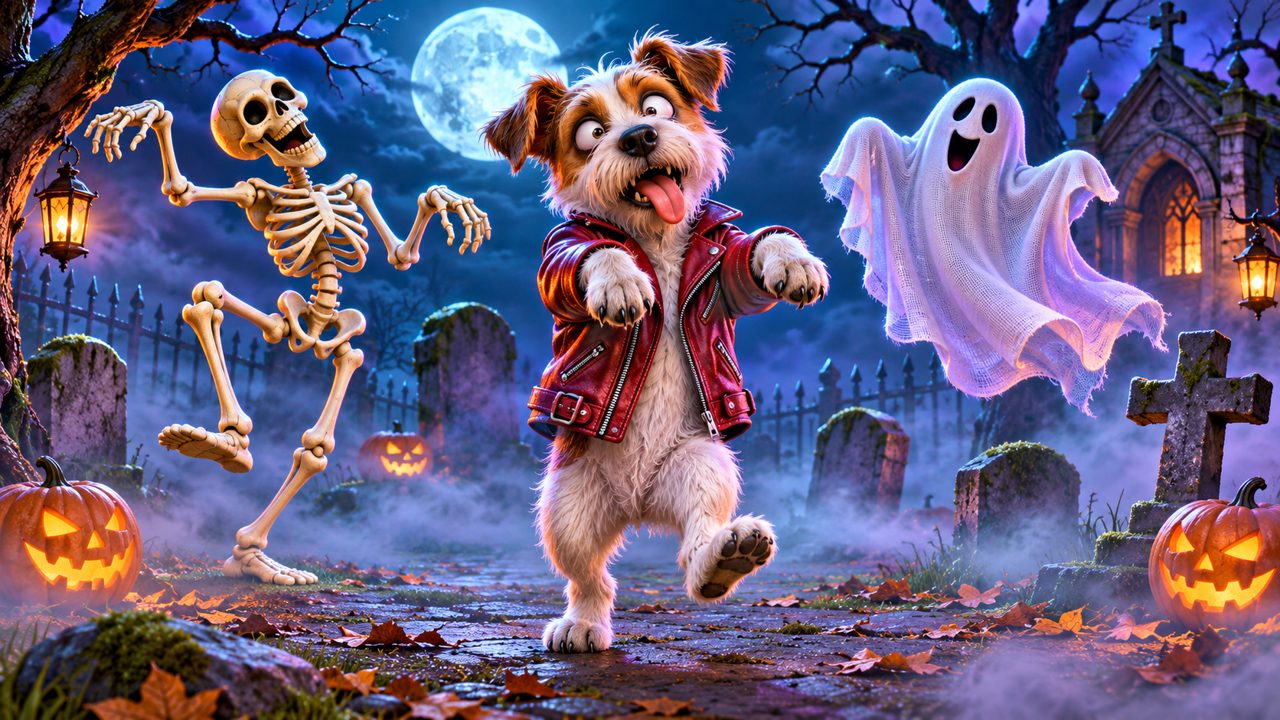
Our site provides a specific service based on the criteria outlined above. You can make your Thriller dance video, and the tool is designed to work with one photo of your pet or yourself. When you upload your photo, the software processes it to generate a 15-second Thriller zombie dance video. The tool specifically supports both humans and pets. Whether you want to see yourself doing the zombie dance or you want your cat or dog to lead the routine, the software accepts both types of subjects. You provide one single photo to initiate the process. Regarding pricing, we use a one-time payment model. The cost is $5.00 one-time. For this payment, you receive 60 credits. These credits are added to your account and remain valid for 365 days, giving you a full year to use them. You are not forced into a recurring monthly subscription. To access the tool, you must sign in. We offer two methods for this: you can sign in using your Google account, or you can sign in with an email address. Once you are signed in and ready to purchase your credits, the transaction is processed through FloatPass. Our website also supports two languages. You can navigate the site and read the instructions in English (en) or Chinese (zh). If you have questions about your account or the process, you can reach us at contact@aithrillerdance.com.
How do you start making your zombie dance video?
The process of creating your video requires a few straightforward steps. First, you need to select the photo you want to use. Apply the guidelines discussed earlier: choose a clear, front-facing photo of yourself or your pet with even lighting and a plain background. Make sure the subject is in focus and clearly visible. Once you have your photo ready, visit the AI Thriller Dance Generator. You will need to create an account or log in. Choose either the Google sign-in option or use your email address to access the dashboard. Next, you will need to acquire credits if you do not have any. Navigate to the pricing section to make your purchase. The cost is $5.00 for 60 credits, and you will complete this payment through FloatPass. Remember that these credits are valid for 365 days. After your account is funded, upload your chosen photo. The system only requires one photo to work. Once the upload is complete, start the generation process. The software will take your image and produce a 15-second Thriller zombie dance video. If you are specifically interested in animating a pet, you can read more details on our dedicated pet thriller dance page. For more general information and updates, you can also check our blog or read our specific Thriller dance AI guide. By following these steps and ensuring your starting photo meets the necessary criteria, you can easily turn a static image into a 15-second animated dance sequence.
What should you do if your photo does not work well?
Sometimes, the first photo you choose might not yield the best animation. If the resulting 15-second Thriller zombie dance video looks distorted or the movements do not map correctly to the subject, you should evaluate the original photo. First, check the framing. If the photo is cropped too closely around the face, the software might struggle to map the body movements for the dance. Try using a photo that shows more of the subject's torso or full body. For a pet, ensure the chest and front legs are visible, as these are crucial for the zombie dance posture. Second, review the lighting again. If one side of the face is significantly darker than the other, the software might misinterpret the facial structure. Find a photo where the light hits the subject evenly from the front. Third, consider the subject's expression. A neutral expression or a slight smile usually works best. Extreme expressions, like a wide open mouth or tightly shut eyes, can warp when the animation applies the specific dance movements. For pets, a calm, attentive pose with the mouth closed or slightly open is ideal. If you are animating a pet and the software fails to recognize it, ensure there are no other animals or humans in the frame. The tool requires one photo of your pet or yourself, and multiple subjects can confuse the processing. Crop the photo so only the intended subject is visible. By adjusting these factors and selecting a new photo, you can try the process again. Since your 60 credits are valid for 365 days, you have time to experiment with different photos to get the exact 15-second video you want. If you continue to experience technical issues with the site or your credits, you can contact support at contact@aithrillerdance.com for assistance.
Frequently asked questions
How much does it cost to make a Thriller dance video?
The cost is $5.00 one-time. This payment gives you 60 credits to use for your videos.
How long is the zombie dance video?
The tool generates a 15-second Thriller zombie dance video from your photo.
Can I use a photo of my dog or cat?
Yes, the tool can turn one photo of your pet or yourself into the dance video.
How long do my credits last?
Your 60 credits remain valid for 365 days after your purchase.
What payment method does the site use?
All payments for credits are processed securely through FloatPass.