
AI models guess how hidden body parts look when they move, which causes distortions if the original photo hides limbs, has poor lighting, or features complex backgrounds.
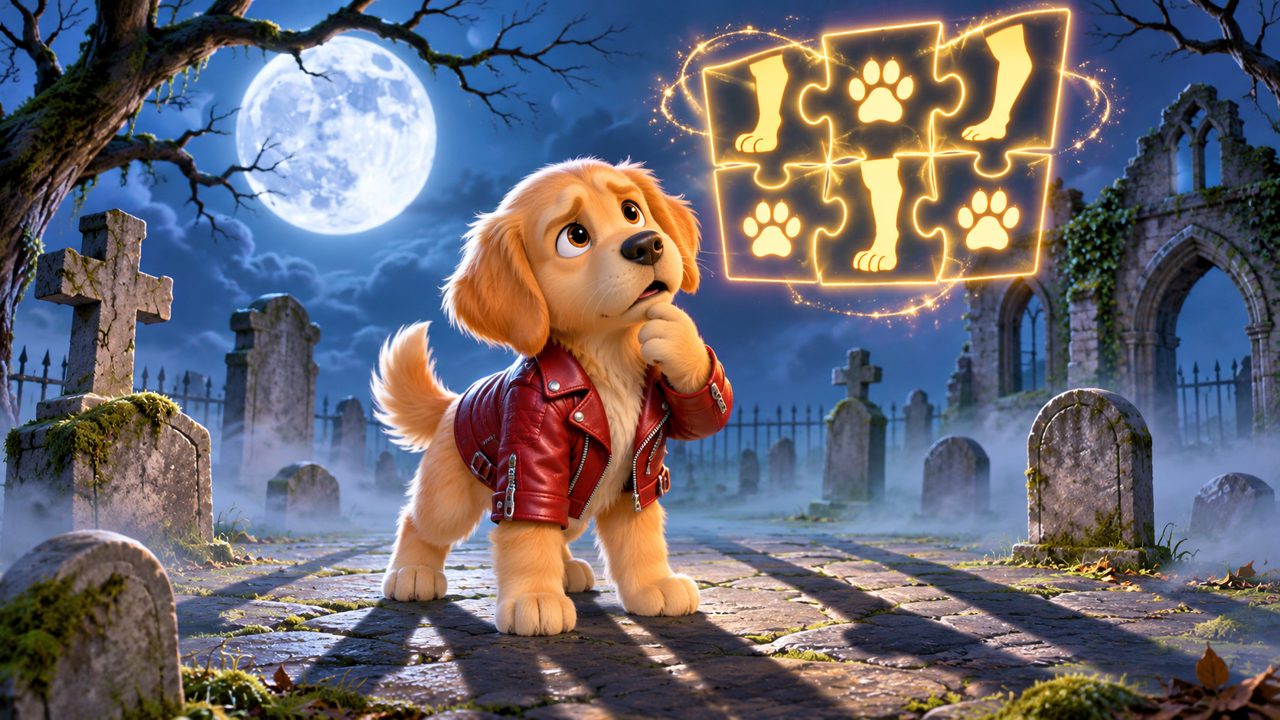
When you upload a single photograph to an AI video generator, the software must translate a flat, two-dimensional image into a moving, three-dimensional sequence. For our specific tool, this means taking one photo of yourself or your pet and mapping it onto a 15-second Thriller zombie dance routine. Because the original photo only shows one angle, the AI must guess what the hidden parts of the body look like. If your arm is behind your back in the photo, the AI has to draw a new arm from scratch when the dance routine requires both arms to swing forward. This guessing process is the primary reason you sometimes see unnatural looking limbs, extra fingers, or facial distortions in AI animated photos.
How does the AI process a single photo into a 15-second video?
The process begins with image recognition. The software scans your uploaded photo to identify the subject's head, torso, arms, and legs. It creates a digital skeleton based on these anchor points. Once the skeleton is established, the AI applies a motion template. In this case, the template is the classic zombie dance, which involves specific, rigid movements: arms extended forward with clawed hands, stiff-legged walking, sudden head snaps, and shoulder isolations.
The Thriller dance involves very specific choreography. The dancer must stand with their knees bent, push their shoulders forward, and extend their arms with rigid, claw-like hands. They then march forward with stiff legs, dragging their feet slightly. Later in the 15-second routine, the choreography requires the dancer to freeze, snap their head sharply to the left and right, and perform rapid shoulder isolations.
As the digital skeleton moves through this routine, the AI stretches and warps the pixels from your original photo to cover the moving skeleton. If the subject turns their head to the side during the dance, the AI must generate the side of the face and the back of the head, which were not visible in the original front-facing photo. The software uses patterns from the visible parts of the photo to fill in these gaps. If the lighting is uneven or the background blends into the subject, the AI might accidentally use background pixels to construct a moving arm, resulting in a distorted limb.
What causes unnatural limbs and facial distortions in AI animation?
Distortions happen when the AI lacks enough visual information to accurately reconstruct the subject in motion. This lack of information usually stems from the composition of the original photo.
The most common cause is occlusion, which means something is blocking a part of the body. If you upload a photo where you are standing behind a table, the AI cannot see your legs. When the Thriller dance template forces the subject to do a zombie walk, the AI has to invent legs. It might guess incorrectly, resulting in legs that are too short, too long, or bent at impossible angles.
Facial distortions often occur due to low resolution or harsh shadows. If a shadow covers half of your face, the AI might interpret that shadow as a physical feature. When the face moves, the shadow moves with it, warping the jawline or the eyes. Similarly, if the photo is blurry, the AI struggles to find the exact boundaries of the eyes and mouth, leading to a melting or smudging effect when the head snaps to the side during the dance routine.
People often look at platforms like kling.ai, mangoanimate.com, viggle.ai, easemate.ai, freebeat.ai, and magiclight.ai when researching how different tools handle these animation challenges. Across tools that animate static images, the output depends heavily on the clarity and completeness of the input photo.
How do you prepare the right photo for your Thriller dance?
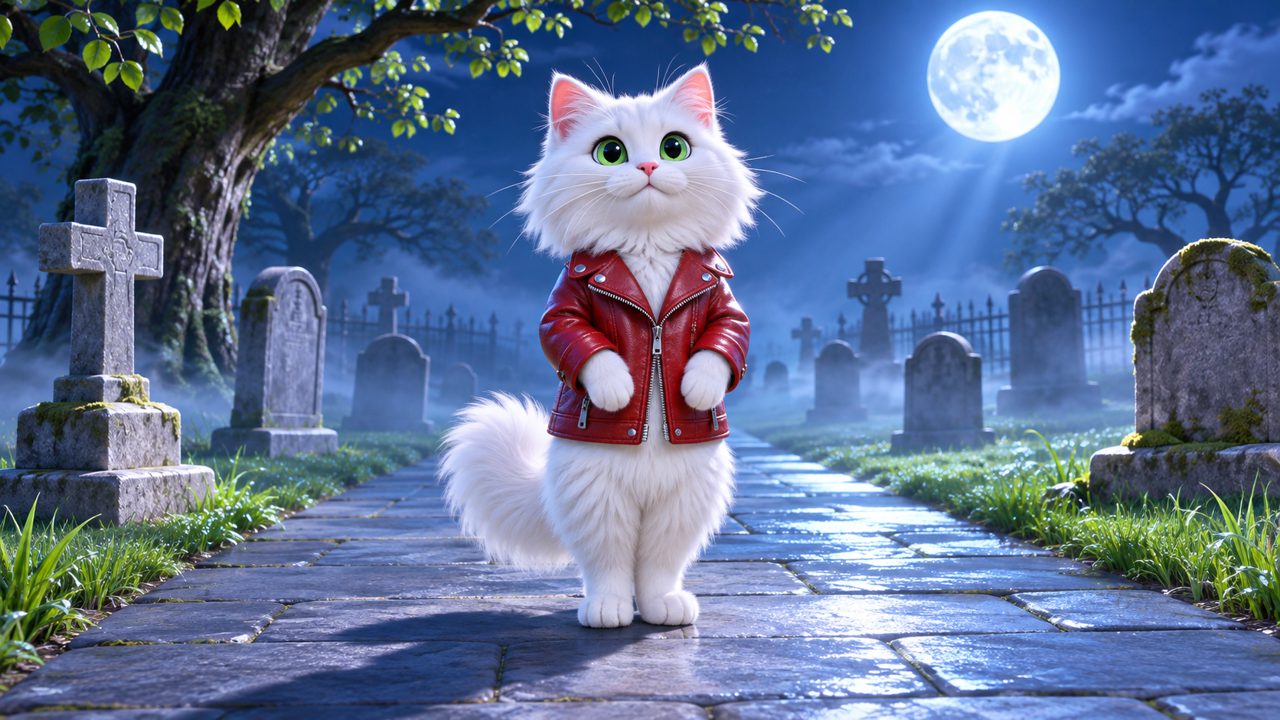
To get a clear 15-second video without distorted limbs, you must provide a photo that gives the AI as much visual data as possible. The ideal photo shows the entire subject from head to toe, standing straight, facing the camera, with arms resting at the sides.
For human subjects, wear fitted clothing. Baggy clothes obscure the shape of your body, making it difficult for the AI to place the digital skeleton accurately. If you wear a large, flowing coat, the AI might interpret the fabric as part of your arms or torso, causing the coat to warp strangely when you perform the zombie dance moves. Ensure your hands are visible and open. If your hands are in your pockets or balled into fists, the AI will struggle to generate the clawed hand gestures required for the Thriller routine.
For pets, the rules are similar but require more patience. If you want to use the Pet Thriller Dance AI, you need a photo where your cat or dog is standing on all four legs or sitting upright with all limbs visible. If your dog is curled up in a ball, the AI cannot identify where the front legs end and the back legs begin. When the software forces the dog's image into a bipedal dancing stance, the resulting limbs will likely look unnatural.
When photographing a cat, ensure its tail is visible and not wrapped tightly around its body. The AI needs to map the tail as a separate appendage. If the tail blends into the cat's torso, the AI might incorporate the tail into the body's movement, causing the torso to warp during the zombie dance. For dogs with long, floppy ears, try to capture a photo where the ears are resting naturally. When the AI applies the sudden head snaps of the Thriller routine, it will attempt to animate the ears swinging with the momentum. Take the photo at eye level with your pet in a well-lit room, ensuring their fur contrasts with the background.
Which common photo mistakes should you avoid?
Many users upload photos that are suited for a picture frame but poor for AI animation. Avoid group photos. The tool is designed to animate one subject at a time. If you upload a photo of two people hugging, the AI might merge their bodies, resulting in a video of a dancer with two heads and four arms.
Avoid heavy filters or extreme makeup that alters the natural proportions of the face. The AI relies on standard human and animal facial structures to map the movements. Filters that enlarge the eyes or smooth out the nose remove the defining lines the AI needs to track the face as it moves.
Here is a breakdown of what works and what causes distortions:
| Photo Element | Good for AI Animation | Causes Distortions |
|---|---|---|
| Subject framing | Full body visible, head to toe | Cropped at the waist or chest |
| Posture | Standing straight, facing the camera | Slouching, sitting, or turned sideways |
| Limbs | Arms at sides, hands visible | Hands in pockets, arms crossed |
| Lighting | Even, bright lighting across the subject | Harsh shadows, backlighting, dark rooms |
| Background | Plain, solid color contrasting with subject | Busy, cluttered, matching subject's clothes |
| Resolution | Clear, in-focus photo | Blurry, pixelated, low resolution |
What are the steps to generate your Thriller dance video?
Once you have a clear, full-body photo, the process to make yours follows a specific sequence.
First, you need to sign in to the platform. You can use your Google account for a quick sign-in, or you can register using an email address.
Second, upload your prepared photo. Wait a moment for the upload to complete. The interface will display your uploaded image so you can confirm it is the correct file.
Third, you will need to purchase the generation. The cost for one 15-second Thriller dance video is a $5.00 one-time payment. This payment gives you 60 credits. Payments are processed through FloatPass.
Fourth, click the generate button. The AI will begin processing your photo, mapping the digital skeleton, and applying the 15-second Thriller dance template. Wait for the software to render the video frame by frame.
Finally, you can view and download your completed video. If you followed the photo preparation guidelines, your video will show you or your pet performing the zombie dance with clear limbs and a stable face.
How does the pricing and credit system work?
The platform uses a simple credit system for video generation. You pay a $5.00 one-time fee, which is processed through FloatPass.
This $5.00 payment adds 60 credits to your account. These 60 credits are exactly what is required to generate one 15-second Thriller dance video. You can read more about this on our pricing page.
Once you purchase these credits, they remain valid for 365 days. This means if you buy the credits today, you do not have to generate your video immediately. You have a full year to take the right photo of yourself or your pet before you spend your 60 credits to create the final animation. If you want to make another video later, perhaps using a different photo or animating a friend, you will simply make another $5.00 one-time payment for another 60 credits.
By understanding how the AI maps your photo and by following the strict guidelines for photo preparation, you can avoid the common pitfalls of unnatural limbs and facial distortions. The AI relies entirely on the visual data you provide. A clear, full-body photo with even lighting and a plain background gives the software exactly what it needs to produce a 15-second zombie dance video. You can find more tips on our Blog or read our specific Thriller dance AI guide to ensure your next generation uses the right photo.
Frequently asked questions
How much does one Thriller dance video cost?
One Thriller dance video requires a $5.00 one-time payment. This payment provides the 60 credits needed for the video.
How long is the generated video?
The tool generates a 15-second Thriller zombie dance video from your photo.
How long do my credits last after purchase?
Your 60 credits remain valid for 365 days after your payment.
What payment method do you use?
All payments for the video generation are processed through FloatPass.
How do I sign in to the site?
You can sign in to the platform using your Google account or an email address.