
Upload one clear photo of yourself or your pet to the AI Thriller Dance generator, sign in, and pay the $5.00 fee to receive a 15-second zombie dance video.
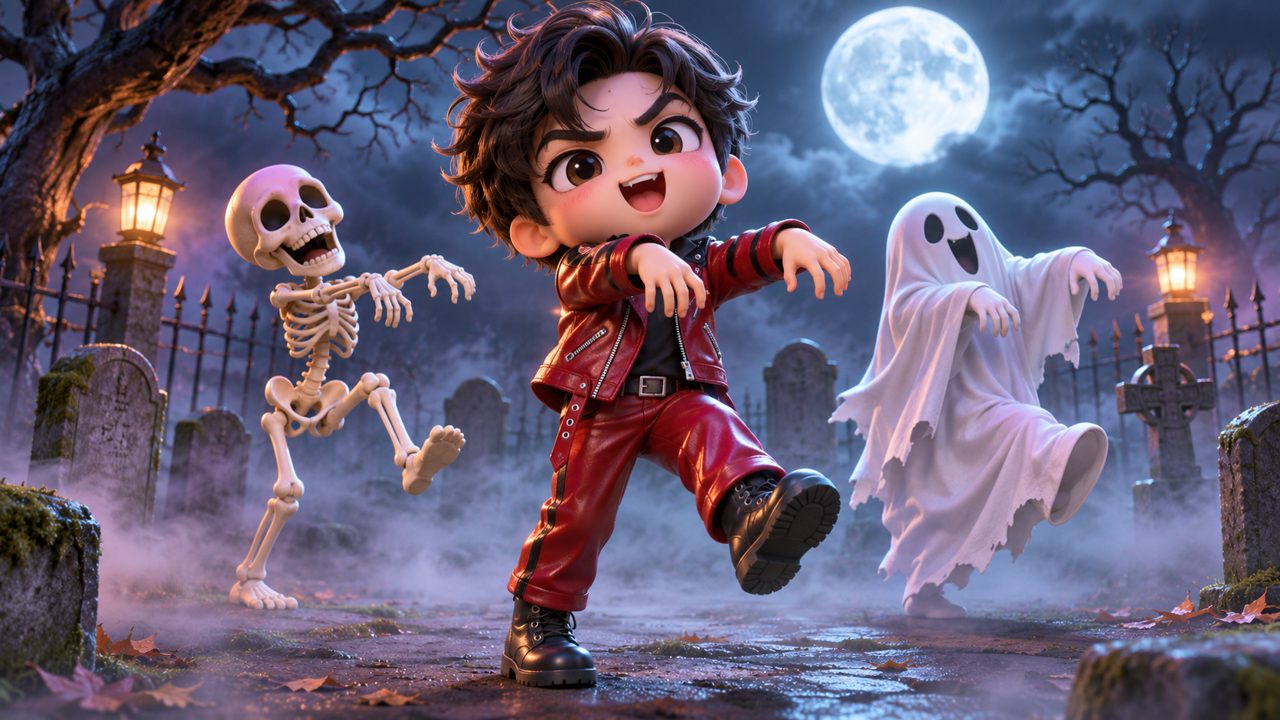
To make a 15-second Thriller zombie dance video, you need exactly one photo. The quality of this single photo determines the final result of your video. You do not need to record yourself dancing, and you do not need to capture any movement on camera. You only need a still image. The process relies entirely on the visual data present in that one file.
Choose a photo where you face the camera directly. The tool needs to see your facial features clearly to map them onto the dancing body. Ensure the lighting is bright and even across your face. Avoid harsh shadows that obscure your eyes, nose, or mouth. Natural daylight from a window in front of you provides the best illumination. If you take the photo indoors at night, turn on multiple lights to reduce shadows on your face.
Remove accessories that block your face. Sunglasses, large hats, thick scarves, or masks will interfere with the generation process. The system needs to identify the boundaries of your face. If you wear glasses daily, you can leave them on, provided there is no heavy glare on the lenses from your light source. If the glare hides your eyes, take a photo without the glasses.
The background of the photo matters less than the subject, but a plain, uncluttered background helps the tool isolate your figure faster. Stand against a blank wall if you are taking a new photo specifically for this purpose. A solid color wall, like white, gray, or beige, works well. If you use an existing photo from your camera roll, crop it so you are the primary focus of the frame. Remove excess background space above your head and to the sides of your shoulders.
Make sure the photo is in a standard format and not heavily compressed. Blurry, pixelated, or dark images will result in a blurry, pixelated, or dark video. The system works best with clear, high-resolution images. Do not apply heavy filters to the photo. Filters that alter your facial structure or add digital makeup can confuse the mapping process. Use a raw, unfiltered image for the most accurate representation in your 15-second video.
How does the step-by-step process work?
First, go to the AI Thriller Dance Generator. You will see an upload area on the main page. Click this area to open your device's file browser, or drag and drop your prepared photo directly into the box. Wait for the upload bar to complete.
Next, you need an account to store your credits and your final video. You can sign in using your Google account or by entering your email address. If you choose the Google option, click the button and select your account from the pop-up window. If you use your email, type it into the field and follow the standard email verification steps sent to your inbox. The site supports both English (en) and Chinese (zh) languages, so you can navigate the interface in the language you prefer.
After uploading the photo and signing in, you will proceed to the payment step. The site uses FloatPass to process all payments. You will be redirected to the FloatPass secure checkout screen. Enter your payment details as prompted by their system.
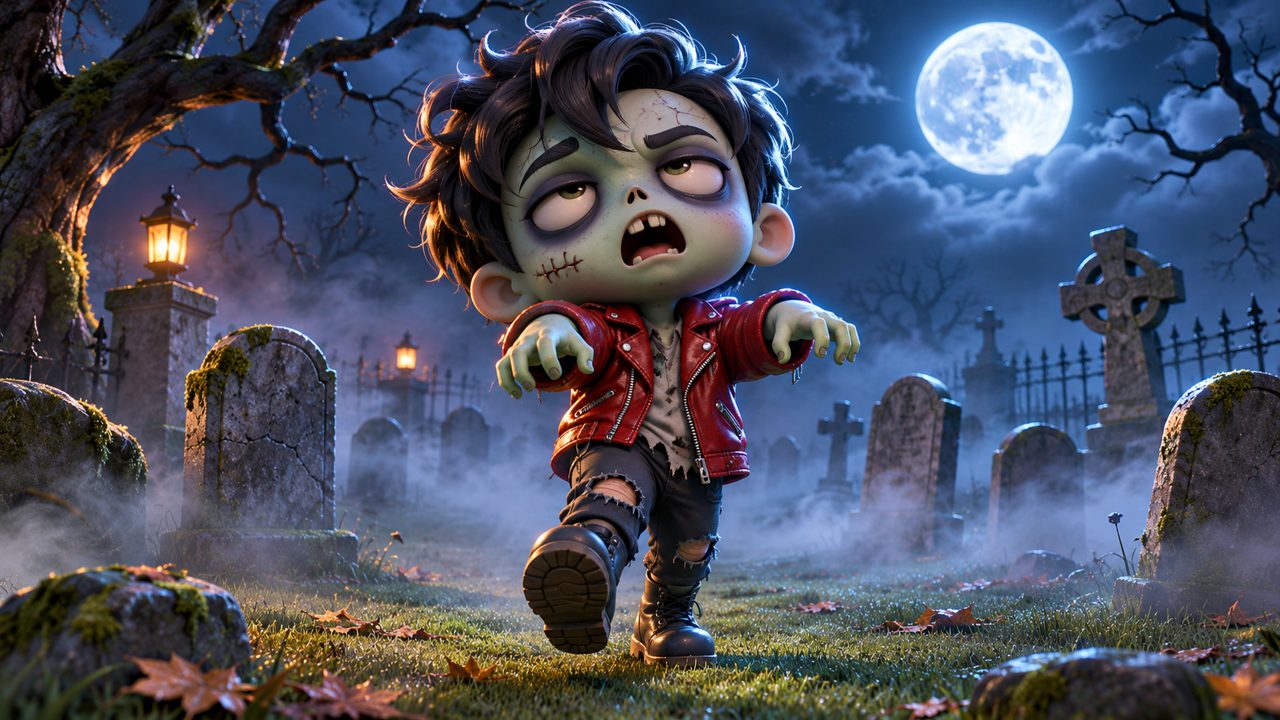
Once the FloatPass payment is confirmed, the generation begins automatically. The tool analyzes your uploaded photo, extracts your likeness, and applies it to a pre-set 15-second Thriller dance routine. The output is a video showing you performing the zombie dance moves.
You can then download the completed video to your device. The entire process requires only your web browser; you do not need to install any additional software or mobile applications. You can do this on a desktop computer, a laptop, a tablet, or a mobile phone, provided you have the photo saved on that specific device. For more detailed instructions on the mechanics of the tool, you can read our Thriller dance AI guide.
How much does the Thriller dance video cost?
Generating one Thriller dance video costs exactly $5.00. This is a one-time payment. There are no recurring subscription fees, no hidden charges, and no monthly billing cycles to use the tool. You pay only when you want to make a video.
When you pay the $5.00 through FloatPass, you purchase a specific package. This package gives your account 60 credits. These 60 credits are the exact amount required to generate one 15-second video. The system deducts the 60 credits from your balance when the video generation starts.
You do not have to use the credits immediately upon purchase. The 60 credits remain valid for 365 days from the date of your payment. This means you can buy the credits today, keep them in your account, and wait up to a year to upload your photo and generate the video. This is useful if you want to pay now but wait for a specific occasion, like Halloween, to create the final product.
You can view the full details on the pricing page. Because payments go through FloatPass, your credit card or bank billing statement will reflect their processing name, not the name of our website. If you want to make multiple videos—for example, one of yourself, one of a friend, and one of a family member—you will need to make separate $5.00 payments for each 15-second video you wish to create. Each $5.00 payment will add another 60 credits to your account, valid for another 365 days.
Can I use a photo of my dog or cat instead?
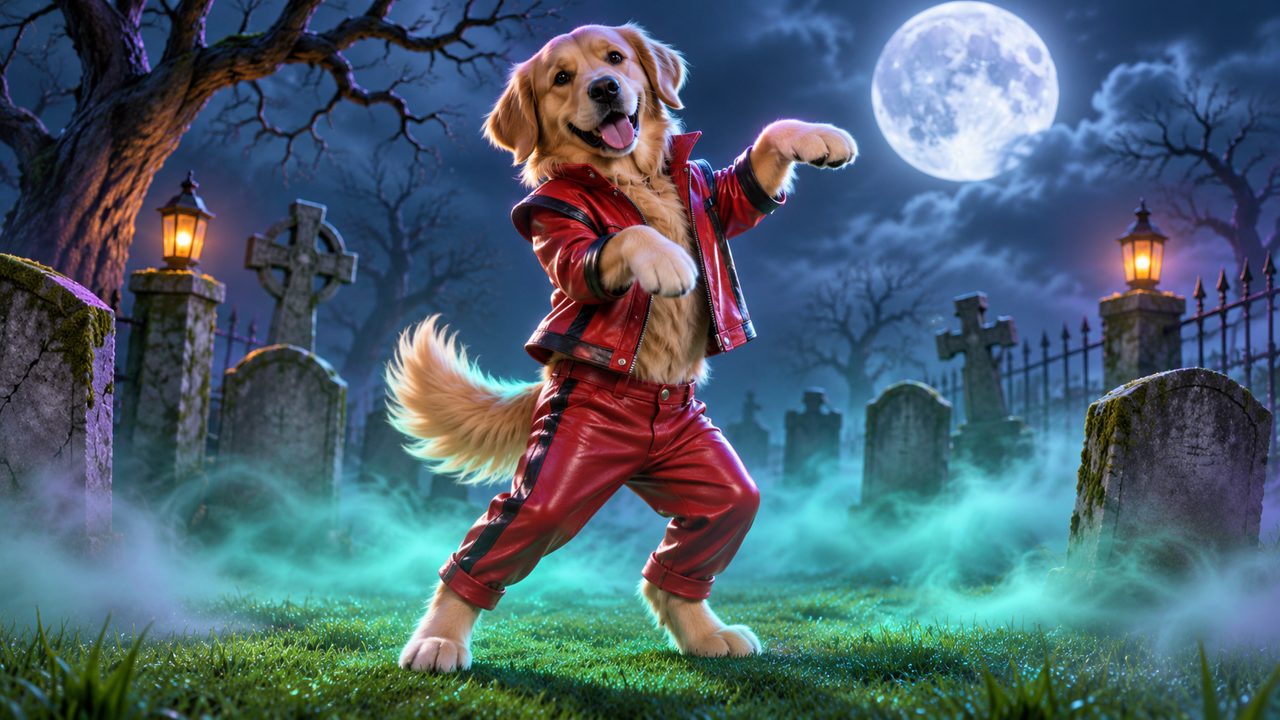
Yes, you can use a photo of an animal. The tool processes animal faces and bodies as well as human ones. You can upload one photo of your pet to create a Pet Thriller Dance.
The rules for pet photos are identical to the rules for human photos. The pet must face the camera directly. The lighting must be clear and bright. If your dog has long hair that covers its eyes, try to brush it aside or tie it back before taking the picture. The tool needs to see the pet's eyes and snout to map the face accurately.
For cats, a photo taken while they are sitting up straight or standing works much better than a photo of them curled up asleep or lying flat on the floor. The tool needs to identify the head, the neck, and the torso to map the animal onto the dancing zombie figure. If the pet's body shape is obscured by blankets or furniture, the mapping will fail or look distorted.
Just like the human version, the pet video costs $5.00, uses 60 credits, and results in a 15-second video. You sign in with your Google account or email address, and you pay through FloatPass exactly as you would if you were making a video of yourself. The final output will show your dog or cat performing the exact same zombie dance routine.
What mistakes should I avoid when choosing a photo?
Many people choose photos that are too dark, too crowded, or too blurry. To ensure your 15-second video turns out well and you do not waste your 60 credits, avoid these common errors.
Do not use group photos. The tool requires a single subject in the frame. If there are multiple faces in the image, the system will not know which one to animate. It might choose the wrong person, or it might fail to generate the video entirely. Crop the photo so only you or your pet is visible before you upload it.
Do not use profile shots. The face must be looking forward at the camera lens. If you turn your head to the side, look down at the ground, or look up at the sky, the animation will not align correctly with the dancing body. The zombie dance routine involves forward-facing movement, so your starting photo must match this orientation.
Do not use screenshots of low quality. Sometimes people take a screenshot of a photo on their phone rather than uploading the original file from their camera roll. This reduces the image resolution and introduces compression artifacts. The final video will inherit these flaws, resulting in a blurry face. Always use the original photo file.
| Photo Element | Do This | Avoid This |
|---|---|---|
| Subject | One person or one pet | Group photos, crowds, or multiple pets |
| Angle | Facing the camera directly | Profile shots, looking away, or tilted heads |
| Lighting | Bright, even, natural light | Dark rooms, heavy shadows, or strong backlighting |
| Quality | Original, high-resolution file | Compressed screenshots, blurry images, or heavy filters |
| Obstructions | Clear view of the face and neck | Sunglasses, masks, hands over face, or large hats |
If you make a mistake and the video does not look right because of a poor photo choice, the system cannot refund the 60 credits used for the generation. You will need to purchase another 60 credits for $5.00 via FloatPass to try again. Taking the time to select the right image prevents this issue. If you run into technical errors not related to the photo, you can email contact@aithrillerdance.com for support.
Where else do people look for AI dance generators?
When looking to animate photos or generate videos, people search across various platforms on the internet. You might see other names mentioned when reading about AI video generation or photo manipulation. Sites like kling.ai, freebeat.ai, and magiclight.ai often appear in searches for photo animation and video creation.
Other platforms people look at include viggle.ai, dreamfaceapp.com, and wigglepet.app. These domains represent different tools available online for various types of image and video processing. If you are comparing methods or looking for different types of animation styles, you may come across these names in articles or forums.
For our specific 15-second Thriller zombie dance, you stay on our site. You upload your single photo, sign in with your email or Google account, and process your $5.00 payment via FloatPass. You do not need to visit those other domains to use our tool. You can read more updates, guides, and information on our blog.
Frequently asked questions
How much does a Thriller dance video cost?
One Thriller dance video costs a one-time fee of $5.00. This payment gives you 60 credits to generate your video.
How long is the generated dance video?
The tool generates a 15-second Thriller zombie dance video from your uploaded photo.
How long do my credits last?
The 60 credits you purchase for $5.00 are valid for 365 days. You can use them at any point within that year to make your video.
How do I pay for the video?
Payments are processed securely through FloatPass. You can complete the transaction after signing in with your Google account or email address.
Can I make a video of my pet?
Yes, you can upload one photo of your cat or dog to create a pet Thriller dance. It costs the same $5.00 fee and uses 60 credits.